
 English
 Magyar
COMPUTHERM
Q20RF Wi-Fi
Wi-Fi thermostat
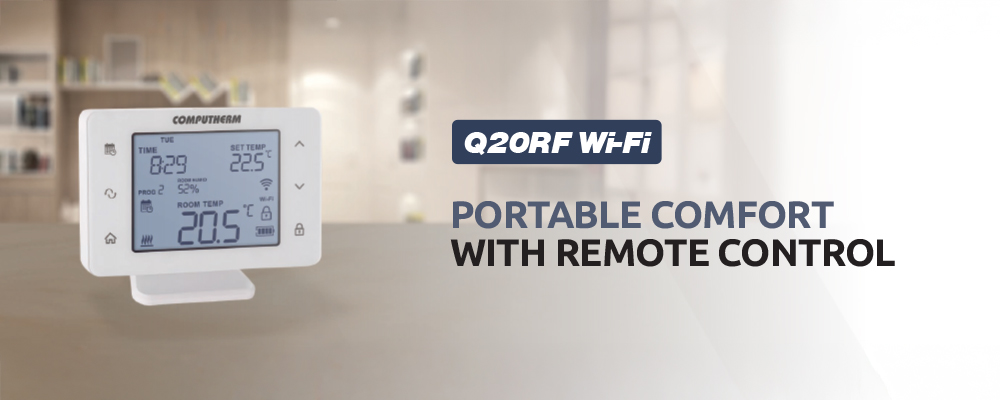
The COMPUTHERM Q20RF Wi-Fi type switched-mode room thermostat is suitable to regulate the overwhelming majority of boilers and air conditioners. It can be easily connected to any gas boiler having a two-wire thermostat connection point and to any air conditioning apparatus or electrical apparatus, regardless of whether they have a 24 V or 230 V control circuit. The device can be programmed as needed so that the heating/cooling or humidifying/dehumidifying system heats/cools or humidifies/dehumidifies your apartment or office to the desired temperature or humidity at the times you want, and it contributes to the reduction of energy costs in addition to providing comfort. The thermostat can be controlled both via the Internet and through its touch-sensitive interface, and its operating status can be continuously monitored.
The simultaneous use of several COMPUTHERM room thermostats and one COMPUTHERM Q4Z or COMPUTHERM Q10Z zone controller provides the possibility for the thermostats to also control a pump or a zone valve in addition to starting the heater or cooler. This way it is easy to divide a heating / cooling system into zones, thanks to which the heating / cooling of each room can be controlled separately, thus greatly increasing comfort. Furthermore, the zoning of the heating / cooling system will greatly contribute to the reduction of energy costs, as due to this only those rooms will be heated / cooled at any time where it is required.
It is particularly recommended for locations where remote control, precise temperature and humidity measurement and control, precise switching, and programmable operation are important. The device can also be supplemented with an optional wired external temperature sensor (not included).
If required, the device can be extended with a COMPUTHERM Q1RX wireless thermostat-controlled socket or/and COMPUTHERM Q12RF thermostat-controlled motorised actuator for radiator valves. It can also be extended with a COMPUTHERM Q2RF signal repeater if a greater distance and/or reinforced concrete slab(s) need to be bridged.
Important functions:
- Portable
- Remote control via the COMPUTHERM Smart application, as well as through Tuya / SmartLife, Amazon Alexa, and Google Home systems
- Selectable heating, cooling, humidifying, and dehumidifying operating modes
- Simple daily, weekly, or 5+2 day programming; recurring programs can be easily copied
- For each day, beside 1 fixed switching time, 10 freely adjustable switching times can be set, and a different temperature and humidity can be assigned to every switching time
- Ability to switch between programmed and manual modes
- Temporary manual mode: until the next program switching, for 1 to 99 hours and for 1 to 99 days
- Selectable switching sensitivity
- Possibility of temperature and humidity sensor calibration
- Switch between °C (Celsius) and °F (Fahrenheit)
- Pump protection function
- Easy switching between cooling, heating, humidification and dehumidification modes
- Humidity limit for cooling: using this function, you can set the humidity level above which the thermostat will stop cooling to prevent condensation
- Large backlit display with touch buttons
- Activable sound feedback when touching buttons
Technical data:
Technical data of the thermostat (transmitter):
- Temperature measurement range: 0 to 48 °C (in 0.1 °C increments) / 32 to 100 °F (in 0.1 °F increments)
- Humidity measurement range: 0 to 99 % RH (in 1% increments)
- Settable temperature range: 5 to 45 °C (in 0.5 °C increments) / 41 to 97 °F (in 0.5 °F increments)
- Settable humidity range: 0 to 99 % RH (in 1% increments)
- Temperature measurement accuracy: ±0.5 °C / ±0.9 °F
- Humidity measurement accuracy: ±3 % RH
- Temperature calibration range: ±3 °C (in 0.1 °C increments) / ±6 °F (in 0.1 °F increments)
- Switching sensitivity: ±0.1 – ±1.0 °C / ±0.2 – ±2.0 °F / ±1 – ±5 % RH
- Battery voltage: 2 × 3.7 V 850 mAh lithium rechargeable batteries
- Protection against environmental impacts: IP30
- Operating frequency: 868.35 MHz, Wi-Fi (b/g/n) 2,4 GHz
- Transmission distance: approx. 50 m in open terrain
Technical data of the receiver unit:
- Power supply voltage: 230 V AC, 50 Hz
- Switchable voltage: max. 30 V DC / 250 V AC
- Switchable current: 6 A (2 A inductive load)
- Protection against environmental impacts: IP30


Download the most important documents related to the product


To control this product Download the the COMPUTHERM Smart app for free from here:


- What purpose can the COMPUTHERM Q20RF Wi-Fi room thermostat be used for?
-
The COMPUTHERM Q20RF Wi-Fi room thermostat has been specifically designed to control heating and cooling systems. In addition, the thermostat is also suitable for controlling electrical and electronic devices which can be turned on and off by interrupting and resuming power supply.
-
What type of batteries can be used with the thermostat?
-
Important! Only the supplied factory lithium batteries may be used with the device.
Long-life or heavy-duty carbon-zinc batteries, alkaline batteries, and other rechargeable batteries are not suitable for operating the thermostat.
The battery level indicator on the display provides reliable warnings only when the supplied factory lithium batteries are used.
Since the batteries in the device have a voltage of 3.7 V, they must be charged only while inserted in the thermostat.
They cannot be charged using conventional 1.5 V AA battery chargers, as those are designed for standard AA-size rechargeable cells. -
What is the expected battery life (per charge) when using the Q20RF Wi-Fi?
-
The expected operating time of the batteries is 100–200 days per charge, depending on usage conditions.
- What means lettering LO or HI that appears in place of the measured temperature on the display?
-
It is expedient to locate the thermostat on the wall of a room where you stay regularly or a long period of time so that the thermostat is oriented in the direction of the natural ventilation of the room but is not exposed to draught or extreme heat (e.g. sunlight, refrigerator, chimney, etc.). Do not use in wet, chemically aggressive or dusty environment. Its optimal location is at a height of 0.75-1.5 m from the floor level.
-
Where to locate transmitting and receiving units of the thermostat?
-
It is expedient to locate the thermostat on the wall of a room where you stay regularly or a long period of time so that the thermostat is oriented in the direction of the natural ventilation of the room but is not exposed to draught or extreme heat (e.g. sunlight, refrigerator, chimney, etc.). Do not use in wet, chemically aggressive or dusty environment. Its optimal location is at a height of 0.75 - 1.5 m from the floor level. The appliance can easily be snapped onto its base and then placed on any horizontal surface (e.g. table, shelf, top of a commode) or, using the screw holes on the back side, can be mounted to a wall as well.
It is reasonable to install the receiving unit of thermostat COMPUTHERM Q20RF Wi-Fi in the vicinity of the boiler, at a place protected against moisture, dust, chemicals and heat. When selecting the location of the receiving unit please also consider that bulky metal objects (e.g. a boiler, buffer tank, etc.) and metal building structures may have an adverse effect on propagation of radio waves. If it is possible, in order to ensure trouble-free RF connection, we recommend that you install the receiving unit at a height of 1.5 to 2 m and at a distance of 1 to 2 m from the boiler or other bulky metal constructions. We recommend that you check reliability of RF connection at the place selected before installing the receiving unit. Do not install the receiving unit beneath the cover of the boiler or in the immediate vicinity of hot pipes or pumps because this may cause damage to the parts of the appliance and compromise the wireless (RF) connection. We also recommend that the power is preferably supplied to the receiving unit from a socket other than that of the boiler (and from another phase, if it is possible), and line power must not be supplied to the receiving unit from the boiler on any account. To prevent electric shock ask a professional to connect the receiving unit to the boiler.
-
How to connect the product?
-
The appliance must be installed / put into service by a competent person. The device to be controlled should be connected to 1-2 connection points located on the back side of the receiver unit. For a more detailed description please refer to the Instruction Manual of the product.
-
What type of appliances can be controlled by COMPUTHERM Q20RF Wi-Fi?
-
COMPUTHERM Q20RF Wi-Fi type switching-mode room thermostat is able to control vast majority of the boilers and air-conditioning equipment available on the Hungarian market. It can be easily connected to any gas boiler having a two-wire thermostat connection point and to any air conditioning apparatus or electrical apparatus, regardless of whether they have a 24 V or 230 V control circuit. In addition, the thermostat is also suitable for controlling electrical and electronic devices which can be turned on and off by interrupting and resuming power supply.
-
Is there a need for 230 V power supply for the operation of the thermostat?
-
The thermostat’s transmitter unit does not require mains power; it operates solely on the two factory-supplied 3.7 V lithium batteries.
However, the thermostat’s receiver unit operates on 230 V mains voltage.
-
Can Q20RF Wi-Fi be used for air-conditioning equipment?
-
Yes. You can switch between heating and cooling modes of the thermostat. According to the selected switch sensitivity, in cooling mode the thermostat will turn on the air-conditioning equipment above the set temperature and turn it off below this temperature.
-
How to switch the thermostat into cooling mode?
-
You can enter the setting menu of the thermostat by pressing the
 button for 2 seconds. Then the continuously illuminated time and the flashing English abbreviation of the relevant day (Monday: MON; Tuesday: TUE; Wednesday: WED and so on) appear on the screen. In the setting menu you can modify the current setting with buttons
  and
and  and touching the
  button you can move to the next setting. You can easily switch between heating (HEA; factory default setting), cooling (COO), humidifying (HUM) and dehumidifying (DEH) modes.
 - What should I do when the appliance switches but 230 V mains voltage does not appear at its output?
-
The appliance has potential free (voltage free) output connection points therefore 230 V voltage normally does not appear at its outputs, it only links the two connected wires or disrupts the connection between them. If you want 230 V voltage to appear at the output of the appliance when it is switched off then you have to connect a mains phase wire to connection point 1 or 2 of the appliance according to the Instruction Manual. Before connection the phase wire must be de- energized and the connection must be carried out by a competent person.
-
What causes the unstable RF connection?
-
There may be several reasons for this issue. The most common causes are:
● Use of inappropriate batteries (e.g. discharged or non-original types)
● Excessive distance or too many obstacles (e.g. multiple reinforced concrete floors or thick walls) between the transmitter and receiver units
● Improper placement of the thermostat’s transmitter or receiver unit (see detailed guidance above)
● Presence of other radio-frequency devices emitting stronger-than-standard signals nearby (in our experience, certain baby monitors or wireless headphones can cause interference)
● Other external sources of interference (e.g. high-power antennas located on rooftops or nearby)Some of these issues — for example, too great a distance or too many obstacles between the transmitter and receiver — can be resolved by using a COMPUTHERM Q2RF signal repeater plug.
-
How will the appliance continue to operate after a power outage?
-
After power is restored, the receiver unit’s output initially switches to the off state.
However, since the transmitter unit repeats its current control command every 5 minutes, the heating/cooling system will automatically return to the previously set operating mode within a maximum of 5 minutes after a power outage.In the event of a power supply interruption (such as a power failure or battery replacement), once power is restored and the current date and time are reset (if automatic time adjustment is disabled), the thermostat resumes operation according to the previous settings and mode.
If the device is used in an environment where power interruptions occur frequently, it is recommended, for safety reasons, to regularly check the proper functioning of the thermostat.
-
Why does the thermostat not switch the heating system?
-
There may be several reasons for this issue. The most common problems include:
● Use of inappropriate batteries (e.g. discharged or non-original types)
● Incorrect wiring, which in unfortunate cases may damage the relay inside the device or even the electronics of the connected equipment
● Unstable radio-frequency connection (see details below)
● The transmitter and receiver units have become unsynchronized, and they need to be repaired (paired) again — the pairing steps can be found in the user manual -
Can a single thermostat be synchronized with several receiving units simultaneously?
-
If you wish to synchronize more than one thermostat with the receiver unit then repeat the previous steps with the other thermostats, too. When you reach the maximum permissible number of synchronizable products (12) then, after pressing the “ON/OFF” button for 10 seconds, the red and green LEDs on the product flash alternately three times. In this case, pressing the “ON/OFF” and “MANUAL” buttons for 10 seconds, the receiver unit should be set to the default position for the synchronization of the new thermostat. Then both LEDs light up for 2 seconds, indicating that the receiver unit is reset and the synchronization of the new thermostat can commence.
- What should I do if I am of the opinion that the thermometer of the thermostat measures inaccurately?
-
You can enter the setting menu of the thermostat by pressing the
button for 2 seconds. Then the continuously illuminated time and the flashing English abbreviation of the relevant day (Monday: MON; Tuesday: TUE; Wednesday: WED and so on) appear on the screen. In the setting menu you can modify the current setting with buttons and and touching the button you can move to the next setting. The name of the setting is T CALIBThe accuracy of the thermometer of the thermostat is ±0,5 °C. The temperature displayed by the thermostat can be modified by maximum ±3.0 °C / ±6,0 °F compared to the temperature measured by the temperature sensor, in increments of ±3.0 °C / ±6.0 °F or 0.1 °C / 0.1 °F
-
Where you can buy it?
-
Search this product at our reseller partners. The list of our reseller partner is available at the following link: Partners
- Where you can find the Instruction Manual of the appliance?
-
Installing and operating instructions for the Q20RF Wi-Fi thermostat are available at the following website: Instruction Manual
- How is default setting of the appliance restored (reset)?
- To restore the thermostat to its factory default settings, go to the “RESET” function in the settings menu, select the “RES” option, and press the button to confirm. This will restore all thermostat settings - including Wi-Fi configuration - to factory defaults.
You can also reset the device from within the app’s settings menu; this method restores the thermostat’s parameters without disconnecting it from the Wi-Fi network, so re-pairing is not required. - What should you do if your Wi-Fi router’s signal is weak and the Q20RF Wi-Fi is out of range?
-
If possible, move your Q20RF Wi-Fi device closer to the router. Alternatively, you can place a Wi-Fi signal extender (repeater) between the router and the Q20RF Wi-Fi thermostat to increase the effective range of the router’s signal.
- What should you do if you experience problems with the Wi-Fi connection?
-
If the device cannot be controlled via the Internet - meaning the app displays the message “Device unavailable” and the thermostat does not respond to commands—communication between the product and the online control interface has been interrupted.
This can have several causes, but the most common issue is related to the Wi-Fi router. It is recommended to restart the router by turning off its power supply and then turning it back on. In most cases, this resolves the problem.If, after a few minutes, the device is still unavailable, try reconnecting the product to the Wi-Fi network according to the steps described in the user manual.
If the connection is successful but the device remains inaccessible, reset the router to factory settings, as custom configurations may be preventing Internet access.While the thermostat is unavailable online, it can still be operated manually using the buttons on the device.
- What should you do if the thermostat is accessible locally via Wi-Fi but not remotely (from another Wi-Fi or mobile network)?
-
In such cases, some settings on the service provider’s router may need to be adjusted, as certain configurations can block inbound or outbound communication. Common causes include:
Firewall or security level settings:
The default or customized security level may be too high. Try reducing it slightly and attempt to reconnect.NAT network (Carrier-grade NAT):
Some Internet providers assign a shared public IP address to multiple subscribers. This setup limits inbound connections from the Internet to your local network. Disabling carrier-grade NAT (if supported by your provider) can resolve the issue.These adjustments can be made through your router’s local configuration interface.
To access it, use the HTTPS address printed on the router’s label, log in with the Admin username and password shown there, and modify the relevant settings.
If you are unsure how to proceed, contact your Internet service provider’s customer support via phone or email for assistance.